01What you need
- The harbor0 desktop app, version 0.1.9 or later, signed in and running.
- rclone, from rclone.org or a package manager such as
brew install rclone. These steps were checked with rclone 1.75.
rclone talks to the app on your computer, and the app talks to harbor0. Nothing listens on your network, and rclone never needs your harbor0 password.
02Turn on the WebDAV server
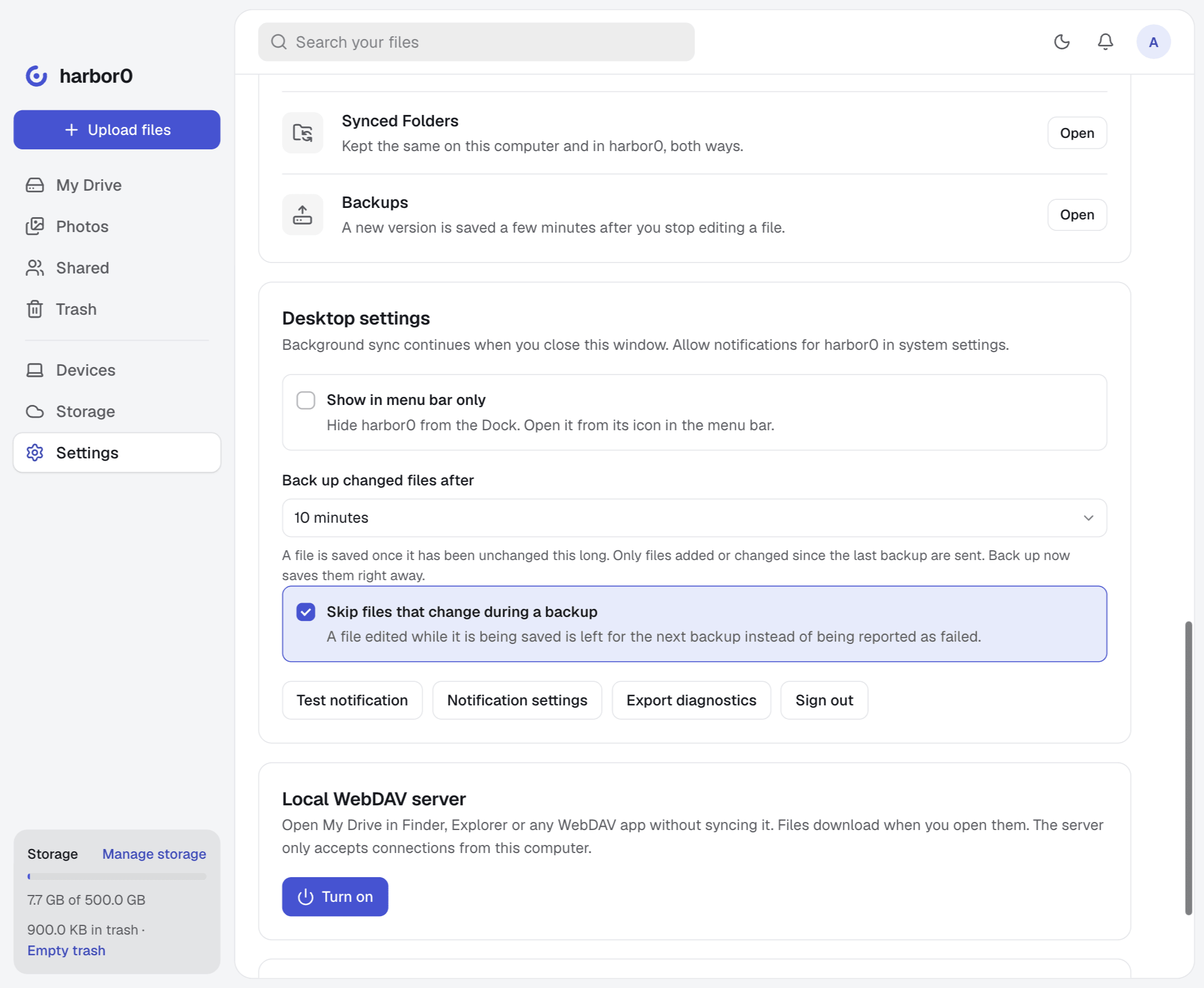
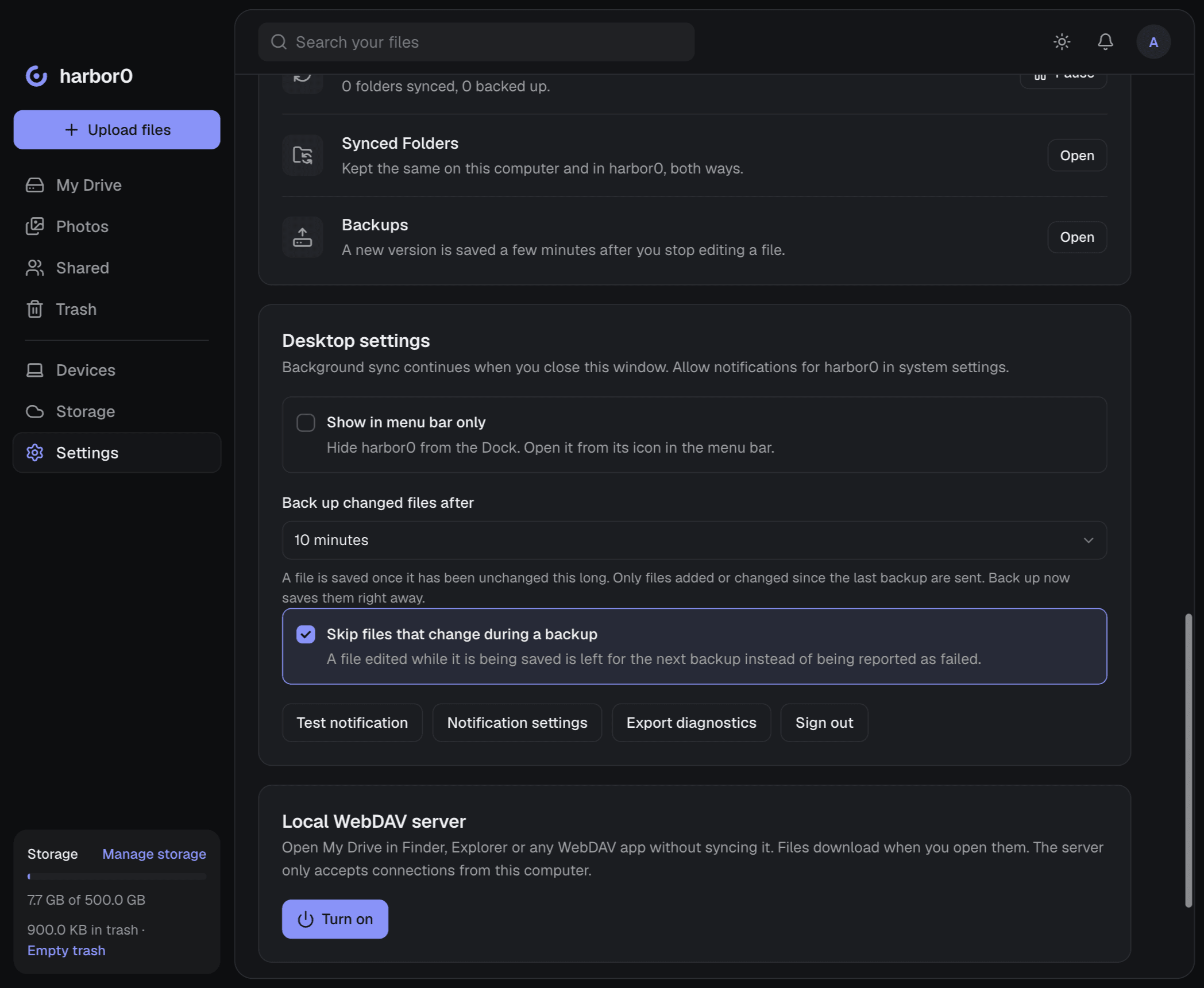
In the desktop app, open Settings and scroll to Local WebDAV server. Click Turn on.
The card then shows the address, the username and a password, each with a copy button. Click the eye to see the password. You need all three in the next step.
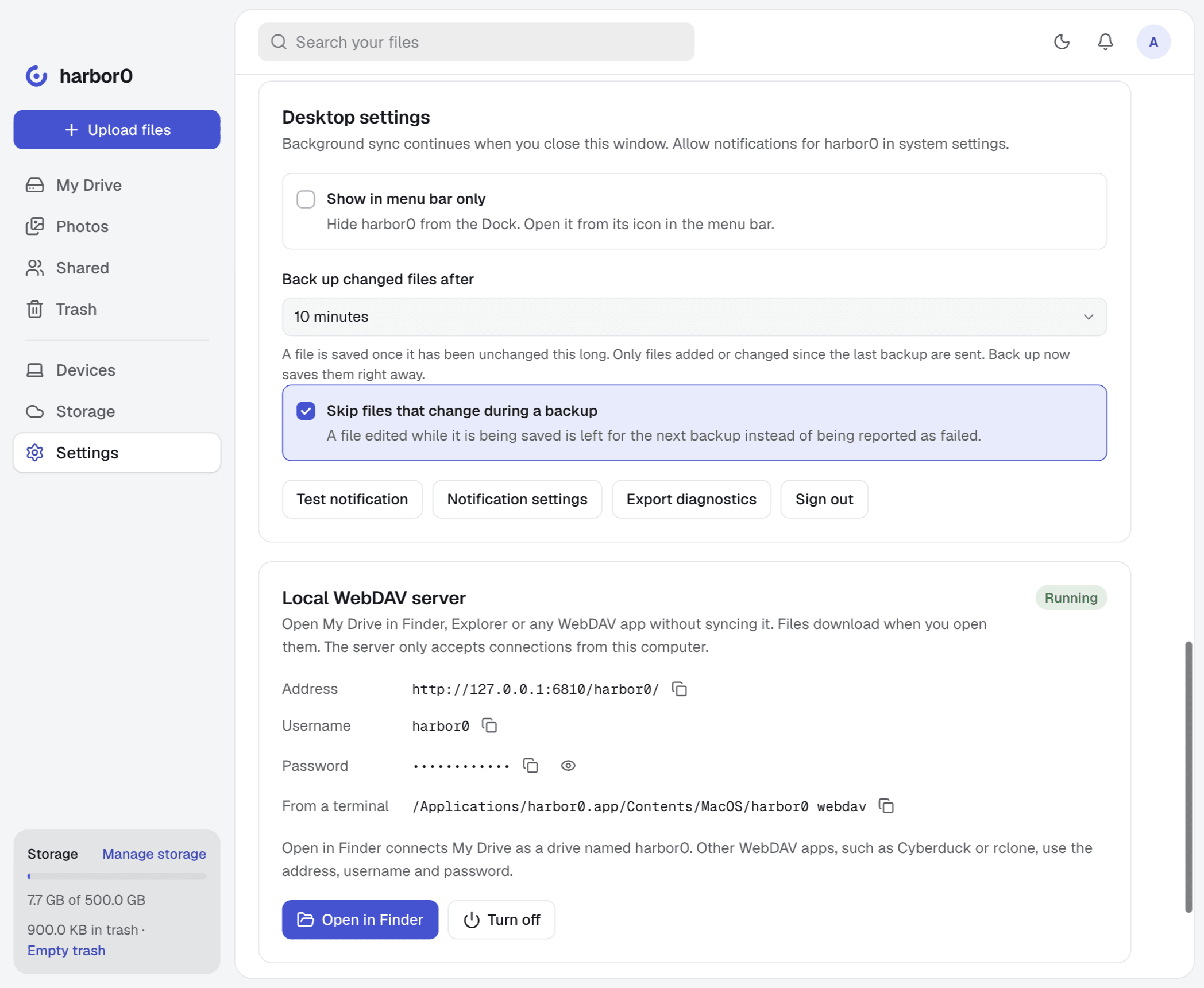
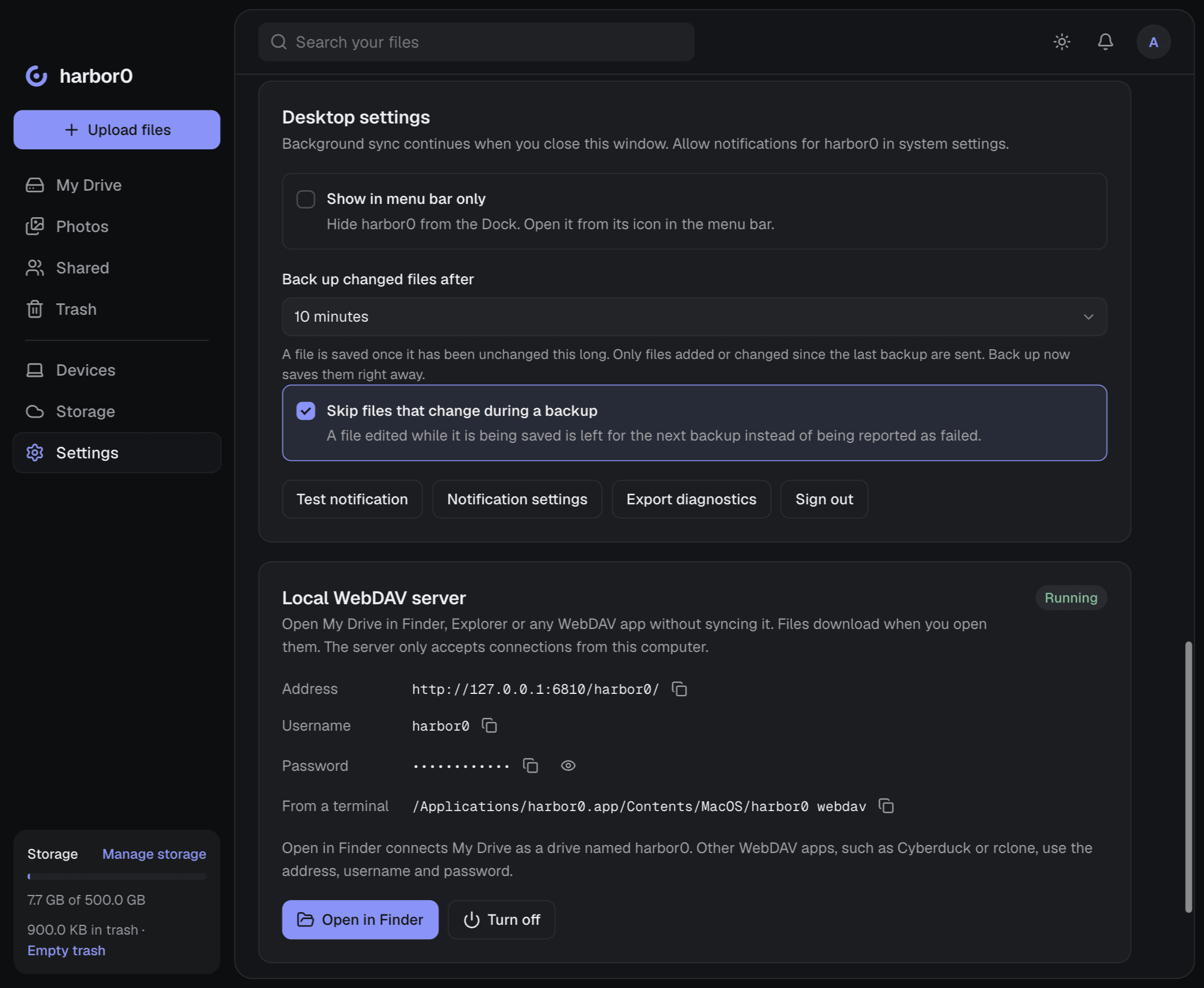
The password is made for your account on this computer and stays the same when you turn the server off and on again.
03Add the harbor0 remote
Run this once, with the password copied from the app in place of PASTE-PASSWORD-HERE:
rclone config create harbor0 webdav url=http://127.0.0.1:6810/harbor0/ vendor=owncloud user=harbor0 pass=PASTE-PASSWORD-HERE --obscureKeep --obscure. rclone stores passwords in a scrambled form, and without the flag it saves the password as typed, so every command then fails with “Enter the username and password from harbor0 Settings” (401 Unauthorized).
Prefer questions? Run rclone config, choose n for a new remote and answer:
- name:
harbor0 - Storage:
webdav - url:
http://127.0.0.1:6810/harbor0/ - vendor:
owncloud - user:
harbor0 - password:
y, then paste the password twice - bearer_token: leave empty. Edit advanced config: no. Keep this remote: yes.
Choose owncloud rather than other. With it, each file keeps the modification time it has on your computer, so a later rclone sync notices an edit even when the size stays the same, and skips files that haven’t changed.
04Check the connection
List the folders at the top of My Drive, and see your storage:
rclone lsd harbor0:
rclone about harbor0:
You’ll see your folders, including Synced Folders, Backups and Archives, and the space you’ve used and have left.
05Copy and sync folders
Copy a folder from your computer into My Drive. -P shows progress:
rclone copy ~/Pictures/Archive "harbor0:Photo archive" -Prclone sync makes the folder in harbor0 match the one on your computer: it uploads what is new or changed and deletes what you removed. Try it with --dry-run first to see what it would do.
rclone sync ~/Pictures/Archive "harbor0:Photo archive" --dry-run
rclone sync ~/Pictures/Archive "harbor0:Photo archive" -P
Files rclone deletes go to your harbor0 trash, and files it replaces keep their earlier copy in Version history, so a sync in the wrong direction can be undone.
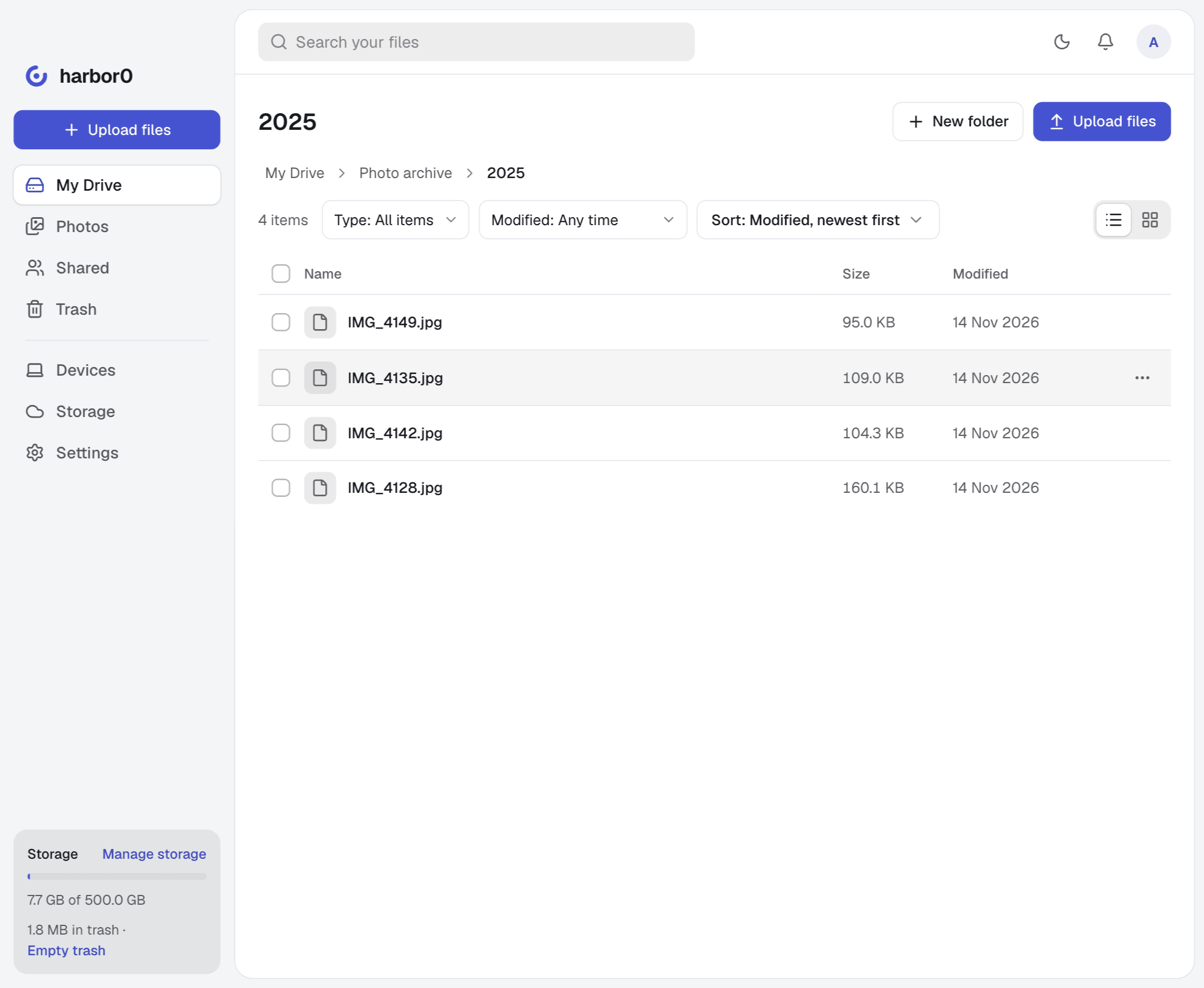
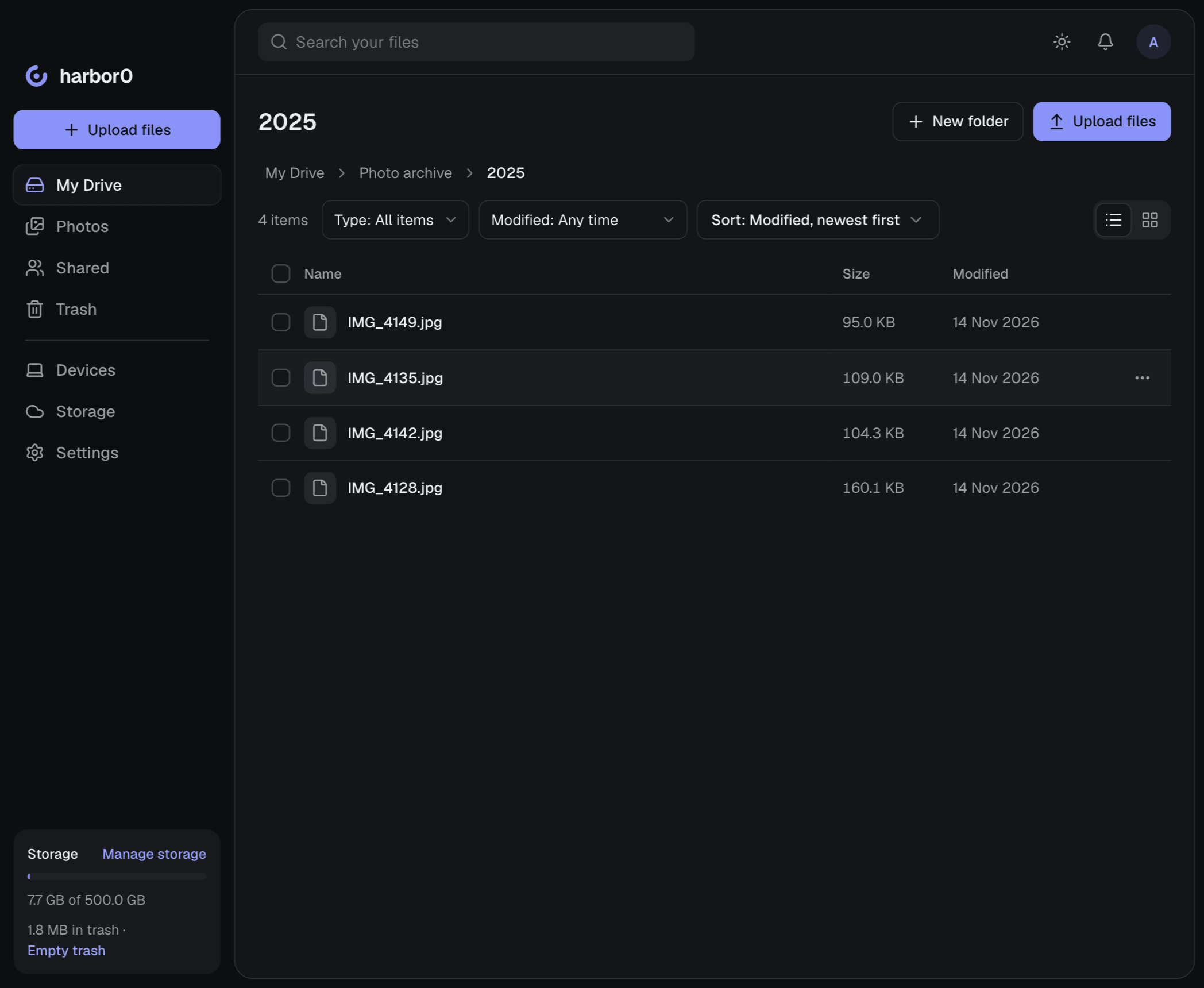
rclone reports a file as copied once the app has saved it on your computer; the app then uploads it in the background and shows it in My Drive while it goes up. Leave the app running until the uploads finish.
On Windows, use Windows paths, such as rclone copy C:\Users\you\Pictures\Archive "harbor0:Photo archive" -P.
06Check what arrived
The server doesn’t give rclone checksums, so a plain rclone check only compares names and sizes. Add --download to compare every byte:
rclone check ~/Pictures/Archive "harbor0:Photo archive" --downloadIt reads each file back from harbor0, so it takes as long as downloading the folder. “0 differences found” means everything matches.
07Download files
Copy in the other direction to get files back onto your computer:
rclone copy "harbor0:Photo archive" ~/Restored -P08Mount My Drive
Open in Finder and Open in File Explorer, in the app, are the simplest way to browse My Drive as a drive. To mount it with rclone instead, add --vfs-cache-mode writes so apps can edit files in place:
- Mac: rclone from Homebrew can’t run
rclone mount. Userclone nfsmount harbor0: ~/harbor0 --vfs-cache-mode writes, which needs nothing else installed, or rclone’s own download with macFUSE forrclone mount. - Windows: install WinFsp, then
rclone mount harbor0: H: --vfs-cache-mode writes. - Linux: with FUSE installed,
rclone mount harbor0: ~/harbor0 --vfs-cache-mode writes.
On Mac and Linux, mount into an empty folder, such as ~/harbor0. The mount stays up while the command runs; press Ctrl+C to unmount.
09Good to know
- The address is
127.0.0.1, this computer. rclone on another computer needs its own harbor0 app. - rclone sees My Drive. Shared with me and the trash are in the app and on the web, and backed-up folders are read-only.
- Files added on another device can take about 10 seconds to show up in a listing.
- Scheduled rclone jobs need the app running. It keeps running in the background when you close its window.
- With end-to-end encryption on, the app decrypts files for rclone on this computer and encrypts what rclone uploads. Unlock your files in the app first.
10Troubleshooting
- 401 Unauthorized: the password was saved without
--obscure, or mistyped. Run therclone config createcommand again with--obscure. - connection refused: the app isn’t running or the server is off. Open the app and check Settings → Local WebDAV server.
- 503 Service Unavailable: the app is signed out or your encrypted files are locked. Sign in or unlock them, and run the command again.
- 507 Insufficient Storage: your harbor0 storage is full. Free some space or get more storage, then run the command again; rclone skips what already arrived.
More on how the server behaves is on the Local WebDAV page.